The bar over a selection
Select words
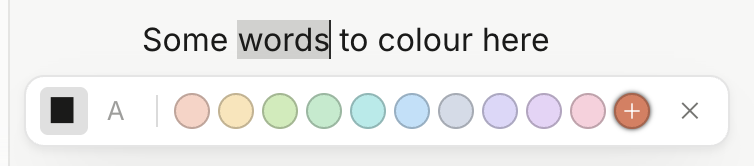
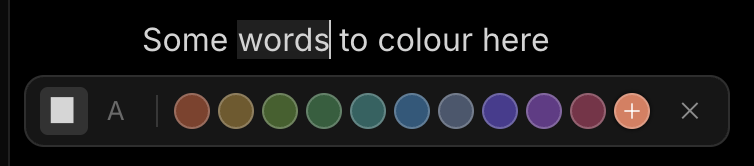
Press ▉ for a highlight or A for text colour, then pick one of the ten colours. The bar keeps to whichever of the two you used last.
 Notealise
Select some words and a small bar of colours appears above them. The A on the format bar opens the same colours.
Select words
Press ▉ for a highlight or A for text colour, then pick one of the ten colours. The bar keeps to whichever of the two you used last.
Ctrl/Cmd + Shift + H


Highlights the selected words in amber. For any other colour, use the bar.
+
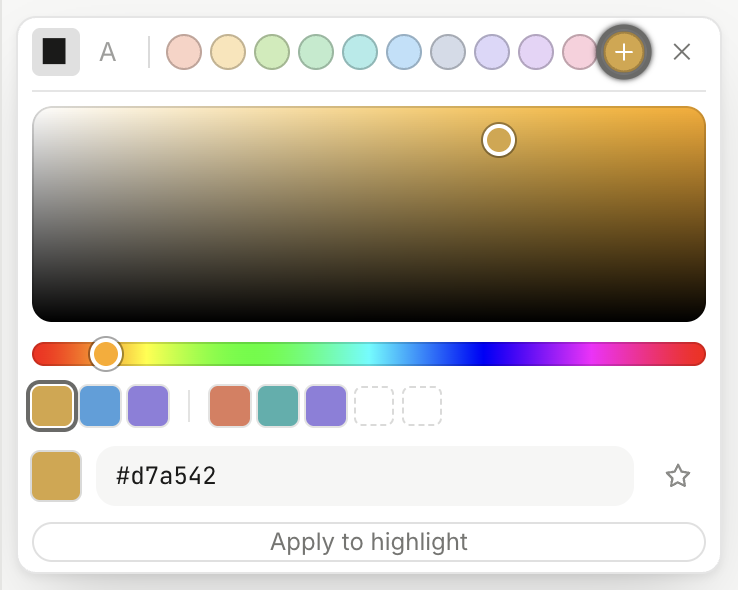
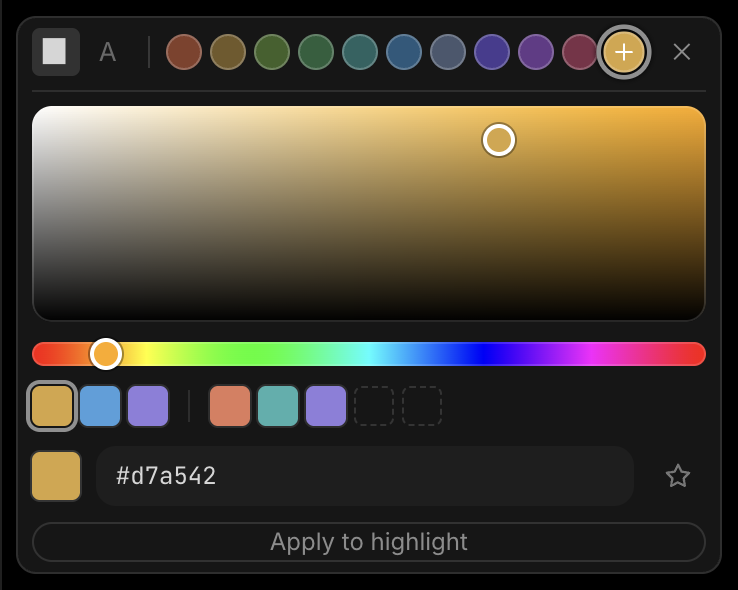
Press + at the end of the bar to open a colour square. Drag it, slide the strip under it, or type a hex such as #e07b5c, then press Apply.
★


Under the square, your three most recent colours sit beside up to five starred ones. Press the star by the hex box to star a colour, and right-click a starred colour to unstar it. They are the same in every colour picker.
✕
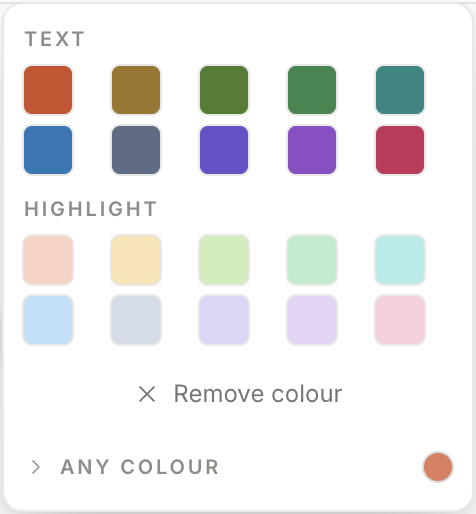
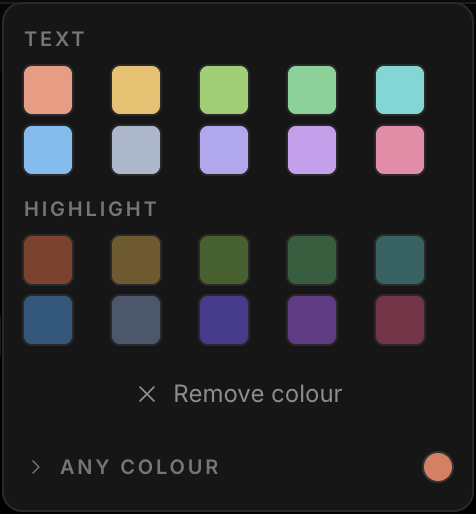
Select the words and press ✕ in the bar, or Remove colour in the A menu on the format bar.
Look → Colour
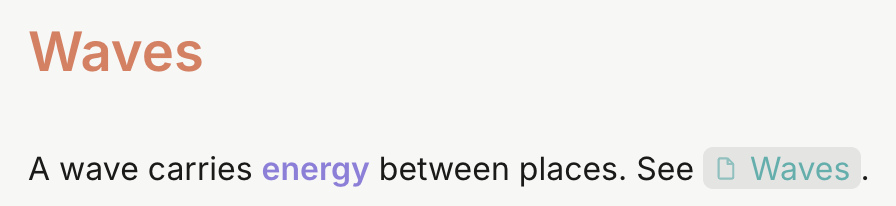
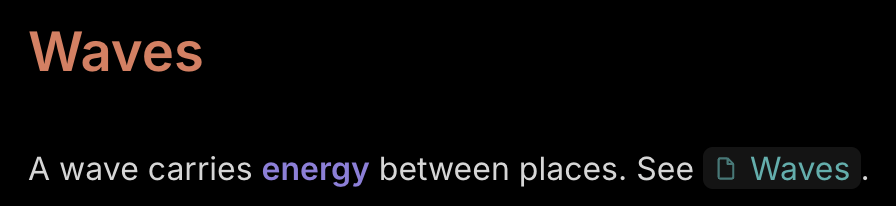
In Settings, under Text in your notes, pick a row — Headings, Bold, Italic, Underline, Strikethrough, Note links or Web links — then Text or Highlight, then a colour. It changes how your notes look in Notealise; nothing is written into them.
The ten named colours adjust themselves for light and dark pages. A colour of your own stays exactly as you picked it on both, so check it on each.